What are agent teams?
Agent teams let you coordinate multiple Claude Code instances working together. One session acts as the team lead, coordinates work, and synthesizes results, while teammates work independently in their own context windows and message each other directly.
Agent teams require Claude Code 2.1.32 or later. Check your version with
claude --version. Agent teams are experimental and disabled by default, with known limitations around session resumption, task coordination, and shutdown behavior.
Unlike subagents, which run within a single session and only report back to the main agent, you can also interact with individual teammates directly without going through the lead.
Official docs: Orchestrate teams of Claude Code sessions — code.claude.com/docs/en/agent-teams
Compare with subagents
| Subagents | Agent teams | |
|---|---|---|
| Context | Own context window; results return to the caller | Own context window; fully independent |
| Communication | Report results back to the main agent only | Teammates message each other directly |
| Coordination | Main agent manages all work | Shared task list with self-coordination |
| Best for | Focused tasks where only the result matters | Complex work requiring discussion and collaboration |
| Token cost | Lower — results summarized back to main context | Higher — each teammate is a separate Claude instance |
Use subagents when you need quick, focused workers that report back. Use agent teams when teammates need to share findings, challenge each other, and coordinate on their own.
Enable agent teams
Set the CLAUDE_CODE_EXPERIMENTAL_AGENT_TEAMS environment variable to 1, either in your shell environment or through ~/.claude/settings.json.
{
  "env": {
    "CLAUDE_CODE_EXPERIMENTAL_AGENT_TEAMS": "1"
  }
}
Start your first team
Once enabled, tell Claude what you want in natural language and describe the team structure. The example below works well because the three roles can explore the problem independently:
I'm designing a CLI tool that helps developers track TODO comments across
their codebase. Create an agent team to explore this from different angles: one
teammate on UX, one on technical architecture, one playing devil's advocate.
The lead’s terminal lists all teammates and what they’re working on. Use Shift+Down to cycle through teammates and message them directly. After the last teammate, Shift+Down wraps back to the lead.
When work is done, ask the lead to clean up:
Clean up the teamDisplay modes — in-process vs split panes
Agent teams support two display modes:
- In-process — all teammates run inside your main terminal. Use Shift+Down to cycle through teammates and type to message them. Works in any terminal with no extra setup.
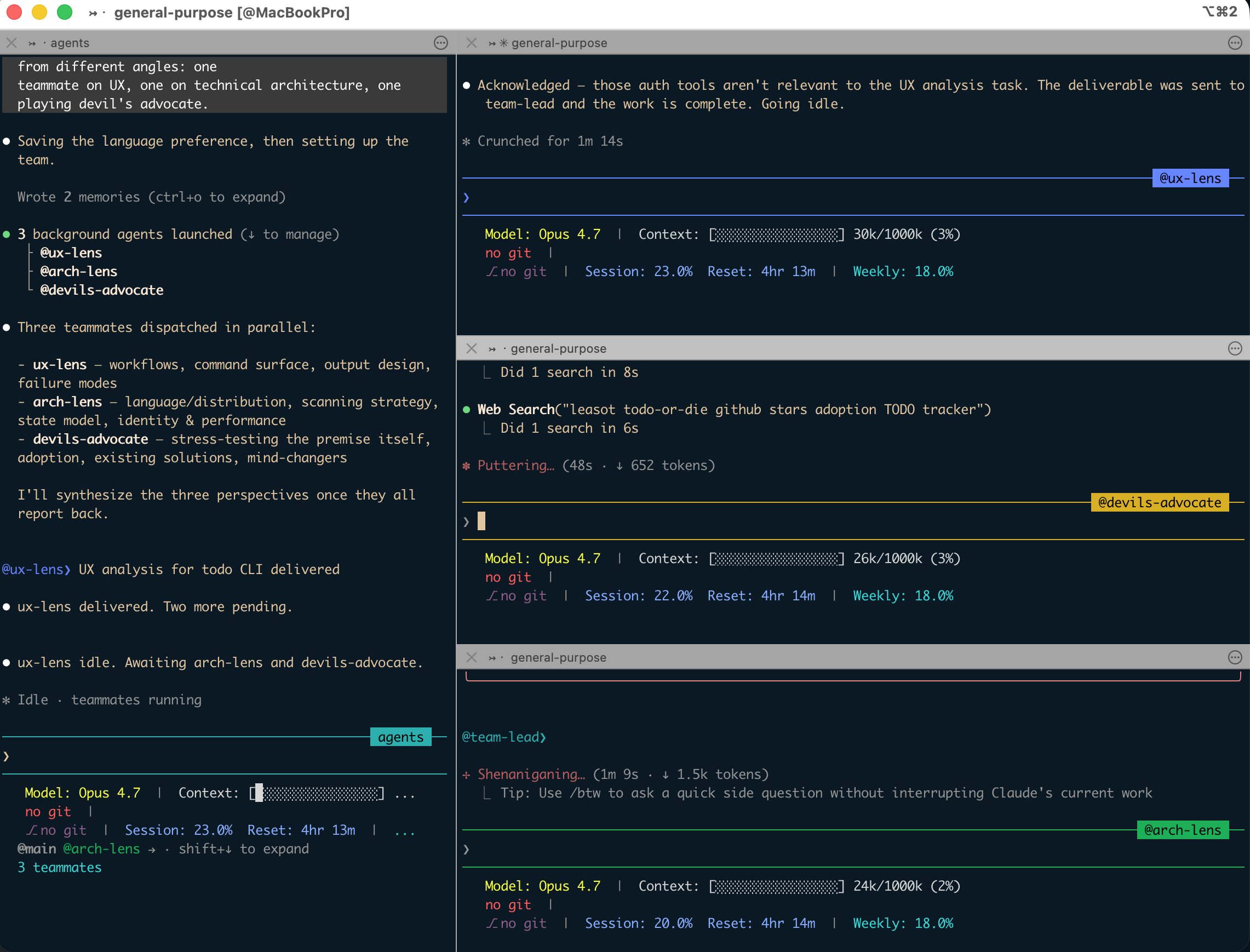
- Split panes — each teammate gets its own pane. You can see everyone’s output at once and click into a pane to interact directly. Requires tmux or iTerm2.
The default is "auto": split panes if you’re already in a tmux session, in-process otherwise. The "tmux" setting forces split-pane mode and auto-detects whether to use tmux or iTerm2 based on your terminal. Override in ~/.claude/settings.json:
{
  "teammateMode": "in-process"
}
To force in-process mode for a single session, pass it as a flag:
claude --teammate-mode in-processSplit-pane mode requires either tmux or iTerm2 with the it2 CLI. Split panes are not supported in VS Code’s integrated terminal, Windows Terminal, or Ghostty.
iTerm2 + tmux setup (the simplest combination)
Split panes require either tmux on its own or iTerm2 with the it2 CLI — not both. The simplest path documented officially is running tmux -CC inside iTerm2, which doesn’t need the it2 CLI or the iTerm2 Python API at all. tmux behavior varies by OS and traditionally works best on macOS.
1. Install tmux
brew install tmuxVerify it’s on your PATH:
which tmux2. Launch iTerm2 with tmux -CC
Open a fresh iTerm2 window and start a tmux control-mode session:
tmux -CCiTerm2 renders the tmux session as native windows and tabs. Running Claude Code from inside this session activates split-pane mode automatically — no extra setup required.
3. Verify with a team
With teammateMode set to "auto" or "tmux", create an agent team and confirm each teammate opens in its own iTerm2 window. If split panes don’t open, run which tmux to confirm tmux is on your PATH.
Without tmux: iTerm2 standalone
If you’d rather not install tmux, iTerm2’s Python API can drive split panes through a separate path. This path is the only one that needs the it2 CLI and the Python API enabled.
-
Enable Settings → General → Magic → Enable Python API in iTerm2
-
Install the it2 CLI with uv (recommended) or pip:
uv tool install it2If you don’t have uv,
pip install it2works too. it2 requires macOS with iTerm2 3.3.0 or later and Python 3.10+.
For most users, the tmux + tmux -CC route above is simpler and more reliable, so try it first.
In-process keyboard shortcuts
Useful when you stay inside the main terminal:
| Shortcut | Action |
|---|---|
| Shift+Down | Cycle through teammates (wraps to lead after the last) |
| Enter | Enter the selected teammate’s session |
| Escape | Interrupt the current turn |
| Ctrl+T | Toggle the task list |
Control your team
Tell the lead what you want in natural language. It handles team coordination, task assignment, and delegation based on your instructions.
Specify teammates and models
Claude decides the number of teammates based on the task, or you can specify exactly what you want:
Create a team with 4 teammates to refactor these modules in parallel.
Use Sonnet for each teammate.
Require plan approval
For complex or risky tasks, you can require teammates to plan before implementing. The teammate works in read-only plan mode until the lead approves their approach:
Spawn an architect teammate to refactor the authentication module.
Require plan approval before they make any changes.
The lead makes approval decisions autonomously, so put your criteria in the prompt — for example, “only approve plans that include test coverage” or “reject plans that modify the database schema.”
Talk to teammates directly
Each teammate is a full, independent Claude Code session. You can message any teammate directly to give additional instructions, ask follow-up questions, or redirect their approach.
- In-process — Shift+Down to cycle, type to send. Press Enter to view a teammate’s session, Escape to interrupt their current turn, Ctrl+T to toggle the task list.
- Split panes — click into a teammate’s pane to interact with their session directly. Each teammate has a full view of their own terminal.
Assign and claim tasks
The shared task list coordinates work across the team. Tasks have three states — pending, in progress, completed — and can depend on other tasks. A pending task with unresolved dependencies cannot be claimed until those dependencies complete.
- Lead assigns — tell the lead which task to give to which teammate
- Self-claim — after finishing a task, a teammate picks up the next unassigned, unblocked task on its own
Task claiming uses file locking to prevent race conditions when multiple teammates try to claim the same task simultaneously.
Shut down teammates and clean up
To gracefully end a teammate’s session:
Ask the researcher teammate to shut downThe teammate can approve and exit gracefully, or reject with an explanation. When all work is done, ask the lead to clean up:
Clean up the teamAlways use the lead to clean up. Teammates should not run cleanup because their team context may not resolve correctly, potentially leaving resources in an inconsistent state.
How agent teams work
An agent team consists of four components:
| Component | Role |
|---|---|
| Team lead | The main Claude Code session that creates the team, spawns teammates, and coordinates work |
| Teammates | Separate Claude Code instances that each work on assigned tasks |
| Task list | Shared list of work items that teammates claim and complete |
| Mailbox | Messaging system for communication between agents |
Teams and tasks are stored locally:
- Team config:
~/.claude/teams/{team-name}/config.json - Task list:
~/.claude/tasks/{team-name}/
The team config holds runtime state such as session IDs and tmux pane IDs, so don’t edit it by hand or pre-author it — your changes are overwritten on the next state update.
Each teammate has its own context window. When spawned, a teammate loads the same project context as a regular session — CLAUDE.md, MCP servers, and skills — but the lead’s conversation history does not carry over. Include task-specific details in the spawn prompt.
Use subagent definitions for teammates
When spawning a teammate, you can reference a subagent type from any subagent scope: project, user, plugin, or CLI-defined. This lets you define a role once, such as a security-reviewer or test-runner, and reuse it both as a delegated subagent and as an agent team teammate.
Spawn a teammate using the security-reviewer agent type to audit the auth module.The teammate honors that definition’s tools allowlist and model, and the definition’s body is appended to the teammate’s system prompt as additional instructions rather than replacing it. Team coordination tools such as SendMessage and the task management tools are always available to a teammate even when tools restricts other tools.
However, the
skillsandmcpServersfrontmatter fields in a subagent definition are not applied when that definition runs as a teammate. Teammates load skills and MCP servers from your project and user settings the same as a regular session — if you have skills or MCP servers attached only to the subagent definition, they won’t take effect for teammates.
Use case examples
Run a parallel code review
A single reviewer tends to gravitate toward one type of issue at a time. Splitting review criteria into independent domains means security, performance, and test coverage all get thorough attention simultaneously:
Create an agent team to review PR #142. Spawn three reviewers:
- One focused on security implications
- One checking performance impact
- One validating test coverage
Have them each review and report findings.
Investigate with competing hypotheses
When the root cause is unclear, a single agent tends to find one plausible explanation and stop looking. Making teammates explicitly adversarial forces them to challenge each other’s theories rather than anchor on the first one.
Users report the app exits after one message instead of staying connected.
Spawn 5 agent teammates to investigate different hypotheses. Have them talk to
each other to try to disprove each other's theories, like a scientific
debate. Update the findings doc with whatever consensus emerges.
Sequential investigation suffers from anchoring: once one theory is explored, subsequent investigation is biased toward it. With multiple independent investigators actively trying to disprove each other, the theory that survives is much more likely to be the actual root cause.
Enforce quality gates with hooks
Use hooks to enforce rules when teammates finish work or tasks are created or completed. Exiting with code 2 sends feedback and blocks the action.
| Hook | Fires when | Effect of exit code 2 |
|---|---|---|
TeammateIdle | A teammate is about to go idle | Sends feedback and keeps the teammate working |
TaskCreated | A task is being created | Prevents creation, sends feedback |
TaskCompleted | A task is being marked complete | Prevents completion, sends feedback |
Best practices
- Give teammates enough context — teammates load CLAUDE.md, MCP servers, and skills automatically, but they don’t inherit the lead’s conversation history. Include task-specific details (file paths, libraries used, reporting format) in the spawn prompt.
- Start with 3–5 teammates — token cost scales linearly and coordination overhead grows. Keep 5–6 tasks per teammate.
- Size tasks appropriately — too small means coordination overhead exceeds the benefit; too large means teammates work too long without check-ins. Aim for self-contained units like a function, a test file, or a review.
- Avoid file conflicts — two teammates editing the same file leads to overwrites. Break the work so each teammate owns a different set of files.
- Monitor and steer — don’t let a team run unattended for too long. Redirect approaches that aren’t working and synthesize findings as they come in.
- Start with research and review — if you’re new to agent teams, start with PR reviews, library research, or bug investigations. These show the value of parallel exploration without the coordination challenges of parallel implementation.
Known limitations
Agent teams are experimental. Current limitations to be aware of:
- No session resumption with in-process teammates —
/resumeand/rewinddo not restore in-process teammates. After resuming, the lead may attempt to message teammates that no longer exist. Tell the lead to spawn new ones. - Task status can lag — teammates sometimes fail to mark tasks as completed, blocking dependent tasks. If a task appears stuck, check whether the work is actually done and update the task status manually or tell the lead to nudge the teammate.
- Shutdown can be slow — teammates finish their current request or tool call before shutting down.
- One team per session — a lead can only manage one team at a time. Clean up the current team before starting a new one.
- No nested teams — teammates cannot spawn their own teams or teammates. Only the lead can manage the team.
- Lead is fixed — the session that creates the team is the lead for its lifetime. You can’t promote a teammate to lead or transfer leadership.
- Permissions set at spawn — all teammates start with the lead’s permission mode. You can change individual modes after spawning, but you can’t set per-teammate modes at spawn time.
- Split panes require tmux or iTerm2 — the default in-process mode works in any terminal. Split panes are not supported in VS Code’s integrated terminal, Windows Terminal, or Ghostty.
Troubleshooting
Teammates not appearing
-
In in-process mode, teammates may already be running but not visible. Press Shift+Down to cycle through active teammates.
-
Check that the task is complex enough to warrant a team — Claude decides whether to spawn one based on the task.
-
If you explicitly requested split panes, ensure tmux is on your PATH:
which tmux -
If you’re using iTerm2 standalone (without tmux), verify the
it2CLI is installed and the Python API is enabled.
Too many permission prompts
Teammate permission requests bubble up to the lead, which can create friction. Pre-approve common operations in your permission settings before spawning teammates.
Teammates stopping on errors
Teammates may stop after encountering errors instead of recovering. Check their output, then either give them additional instructions directly or spawn a replacement teammate.
Orphaned tmux sessions
If a tmux session persists after the team ends, it may not have been fully cleaned up. List sessions and kill the one created by the team:
tmux ls
tmux kill-session -t <session-name>
Next steps
- Subagents — lighter-weight delegation when teammates don’t need to coordinate with each other
- Plan mode — useful background when requiring plan approval for teammates
- Hooks automation — applying
TeammateIdleand other team coordination hooks